Work Plans
In the same way as with the absence calendar, a work plan must also be created to register absences in Intega HR/Intega Go app. The purpose of the work plan is similarly to simplify the registration of vacation, illness, and other absences, so the system automatically uses the employee's working hours per day
Create work plans
Work plans can be created at three levels – following the same principle as the absence calendar: Service agency, Employer, and Employee. At a minimum, a work plan must be created at the Service agency level.
When an absence is registered in Intega HR, the system (after checking the absence calendar) first checks if there is a work plan for the employee. If not, the system checks if there is a work plan for the employer. If not, the system finally checks the Service agency.
Employees can view their own work plan under the menu item 'Work Calendar.'
Example of a work plan for an employee who has Wednesdays off: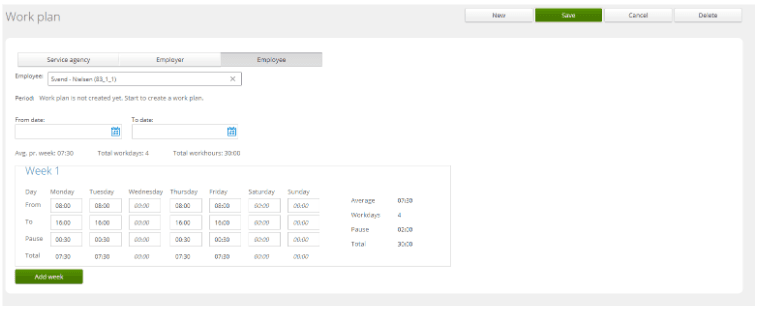
⚠️ NOTE: The calculation of the average working time per week is shown in hours and minutes, unlike the absence registrations.
👩🏫Case: If the company's work plan is 36 hours / 5 working days, the average time per week is calculated as 7.20. We show the average time in hours = 07:12 (7 hours and 12 minutes).
Who can create work plans?
Only roles with the following permissions can create work plans:
● Access to all departments
● All permissions for the Absence Calendar (Create, Edit, Read, and Delete)
● YES to Work plan.
Create Work plan at the Service agency Level
● Go to Settings -> Work plan
● Select the Service agency tab and click on 'New'
● Enter 'From Date'
● Enter 'To Date' - this must be filled in - use, for example, 31-12-9998
● Fill in 'Week 1' with the times for the relevant weekdays If you use 'Tab', the fields are automatically filled with the previous day's
time
● Finish by clicking Save.
⚠️ NOTE: If there is ongoing payroll processing or backdating, the work plan cannot be saved.
Create Work plan for Employer
The work plan for the employer is created in the same way as for the Service agency. If there are multiple employers in a Service agency, you only need to create a work plan for those employers who have a different work plan than the Service agency.
Create Work plan for Employee
An employee must have a personal work plan if the employee's working hours differ from the company's work plan. Therefore, a work plan must always be created for part-time employees.
Click on the 'Employee' tab. If you have not already selected an employee in the 'Employee Overview', find the employee by typing in the 'Employee' field. Create the work plan in the same way as for the Service agency.
Click on ‘Add Week’ if the employee works different hours week by week. The maximum cycle that can be created is 11 weeks. 'Week 1' is not necessarily the first week of the year, but the first week in which the employee works as specified.
If an employee with a personal work plan needs to switch to the Service agencies work plan, for example, when transitioning from part-time to full-time employment, change the 'To Date' field on the employee's work plan. The employee will then automatically be covered by the Service agencies work plan.